
Posted by
Blog
ANSI vs ISO Keyboards: What’s the Difference and Which Layout Should You Choose?

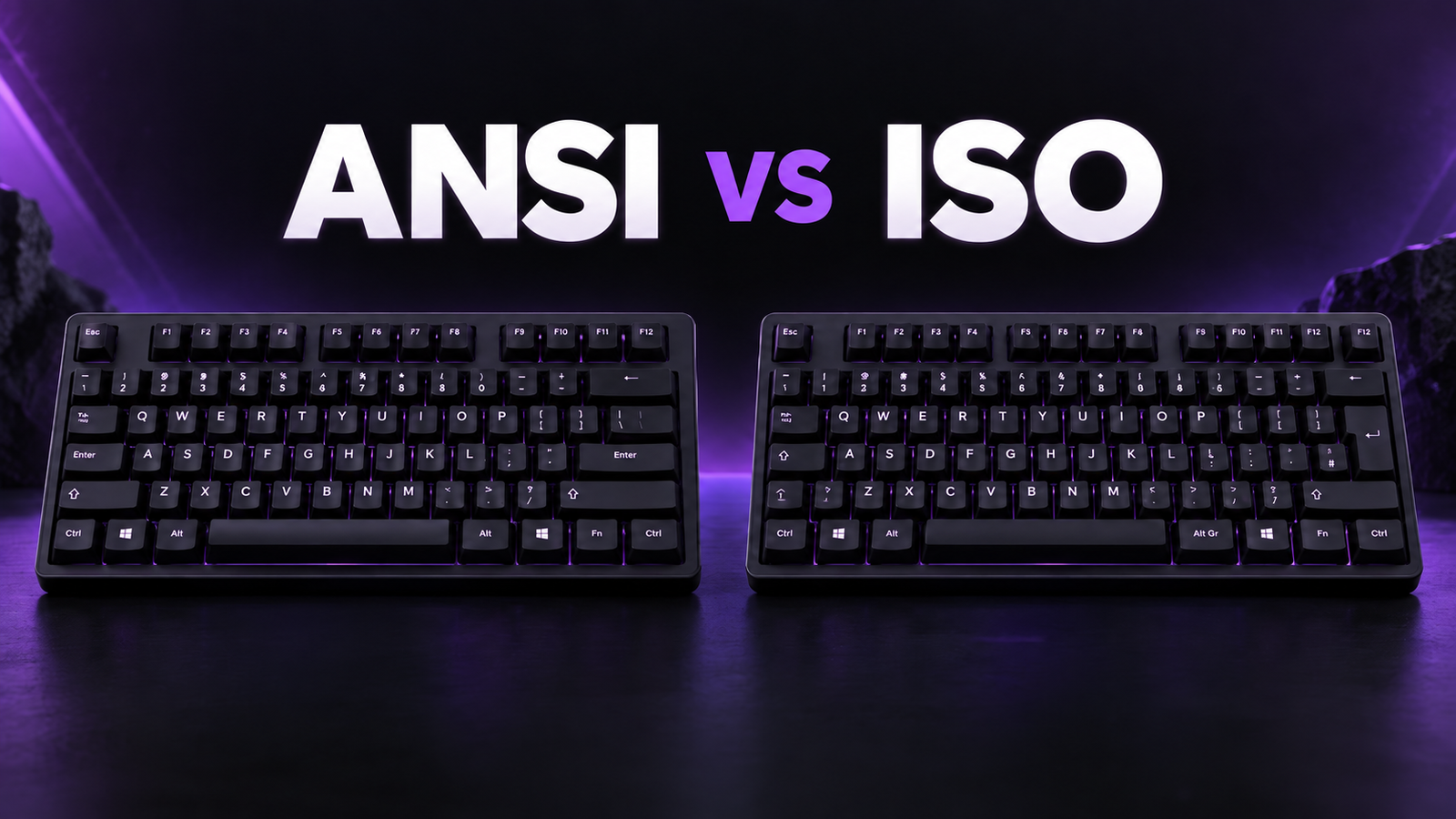
Most gaming keyboards sold in Portugal are ANSI. Most people in Portugal learned to type on ISO. The gap shows up the first time you look for the ç key, or try to type The ANSI vs ISO keyboard comparison comes down to three physical differences, and only some of what they cause can be fixed in software. This guide goes key by key through what changes, what remapping tools such as VIA can and cannot fix, and how to get Portuguese legends on either layout with an ISO-PT keycap set. ANSI and ISO describe the physical layout of a keyboard: the shape, size and position of certain keys. ANSI stands for American National Standards Institute and is the layout most associated with keyboards sold in the United States. ISO stands for International Organization for Standardization and is the norm across most of Europe, Portugal included. Neither one decides which characters your keys type. That is the job of the language layout in your operating system. Keeping those two things apart is the key to everything else in this guide. Three areas change: the Enter key, the key that ANSI places above it, and the Left Shift. Everything else (letters, numbers, F-row, bottom row) uses the same key sizes on both. 1u is the width of a standard letter key, 19.05 mm. The Enter key is the one you notice first. ANSI uses a single wide bar on the home row, with the backslash key sitting above it. ISO turns the Enter into an inverted L that spans two rows, so the key that used to sit above it moves down to the home row, between the last letter key and the Enter. The Left Shift is the difference that adds a key. ISO cuts it from 2.25u to 1.25u and uses the freed space for an extra 1u key. That is why ISO has one key more than ANSI at every size, and on the Portuguese layout that extra key is the only one that types The layout is not set by the keycaps. It is set by the plate and the PCB. The plate has a cutout for every switch, and the PCB has a socket under each one, or a magnetic sensor on a Hall Effect board. An ANSI board has one switch under its long Left Shift, with a stabiliser to keep it level. An ISO board has two switches in the same space and no stabiliser. The Enter switch also sits in a different spot. So neither new keycaps nor new firmware can turn one layout into the other. Some custom PCBs have sockets for both, but most gaming keyboards, magnetic boards included, are built for one layout only. A Hall Effect board’s sensors are soldered to the PCB at fixed positions. Good to know: The physical layout is fixed at the factory by the plate and PCB. The language layout is set by your operating system and changes in seconds. Most of what feels like an “ANSI problem” in Portugal is really a language-layout problem, and that part is fixable. Neither layout is better for gaming. Switch type, latency, polling rate, actuation distance and features such as Rapid Trigger have a far bigger impact on competitive play than the shape of the Enter key. Some players prefer ANSI for its longer Left Shift, which is easier to hit without looking, and for the wider choice of gaming keyboards and aftermarket keycaps. The Akko MonsGeek FUN60 Pro HE is a good example of an ANSI board built for competitive play. The same board also exists as the MonsGeek FUN60 Pro ISO, so on this model you do not have to trade layout for performance. In practice, the best choice is the layout you are used to, unless the keyboard you want only comes in one format. The rest of this guide is about making that second case work. Every key sends a code to your computer, not a letter. The operating system turns that code into a character according to the language layout you picked. That split is why software can fix more than most people expect, and also exactly where it stops. Switch Windows to the Portuguese layout on an ANSI keyboard and every key takes on its Portuguese function straight away. The key to the right of L types ç. The backslash key above Enter types What you lose is VIA is a free remapping tool for keyboards that run QMK firmware with VIA support. It runs in a Chromium-based browser at usevia.app, draws your keyboard’s layout on screen, and lets you click any key and give it a new keycode, on several layers. The changes are written to the keyboard’s own memory, so the remap goes with the keyboard to any computer, with nothing to install there. Vial, an open-source fork, works the same way. For the missing If you game on the same board, the Fn layer is the safer choice: you keep every key you might bind in game, and you only reach for the combo in chat or when writing. Many gaming keyboards do not run VIA. They ship with their own driver or web configurator instead, and most of these can remap keys too. Whether they solve the On Windows, Microsoft PowerToys (Keyboard Manager) or AutoHotkey can remap a key or shortcut. On macOS, Karabiner-Elements can send the ISO key, which it calls non_us_backslash. On Linux, keyd or a custom XKB option does the same. These remaps live on that computer only, so they suit a fixed desk setup better than a keyboard you take to a LAN event. Bottom line: software can give an ANSI keyboard every Portuguese character, < and > included. It cannot change the shape of the keys, and it cannot change what is printed on them. That part is a keycap job. There are two ways, and they suit different people. The first is the Portuguese layout, described above. Every key takes its Portuguese function and ç sits right of L, exactly where it is on an ISO-PT keyboard. You need one remap for The second is US International. It keeps the US mapping your keycaps already show and turns the apostrophe, quote, tilde, circumflex and grave keys into dead keys: you press the accent first and the letter second. Apostrophe then Here is the 60-second version: You do not need to change your display language or remove the layout you already use. The Portuguese layout is added the same way, under the Portuguese (Portugal) language. With United States-International active on an ANSI keyboard: Dead keys are the cost of US International. Pressing the apostrophe shows nothing until you press the next key, so typing “don’t” in game chat becomes apostrophe, spacebar, The simplest way around it is to keep the plain US layout installed for gaming and Discord, use US International for writing, and flip between them with Win + Spacebar. If you want Windows to remember the layout per app, turn on Let me use a different input method for each app window in Settings > Time & language > Typing > Advanced keyboard settings. It is off by default. macOS needs no extra layout. On the standard US keyboard, Option + c gives ç, Option + e then a vowel gives the acute accent, Option + n then On Linux, English (US, intl., with dead keys) behaves like Windows US International, while English (US, alt. intl.) only activates the dead keys while AltGr is held, so apostrophes and quotes keep working normally. A Compose key is a third option: Compose, tilde, ISO-PT is the Portuguese version of the ISO layout. It keeps the ISO physical structure (tall Enter, short Left Shift, the extra key beside it) and adds the Portuguese mapping and legends. The practical gain is that the characters Portuguese uses most get their own keys instead of a combination. ç sits right of L, with º and ª beside it. The tilde and circumflex dead key sits at the end of that same row, next to the Enter, and the acute and grave dead key sits at the end of the row above. You do not need ISO-PT to type in Portuguese. What it gives you is a keyboard where the legends match what appears on screen, without memorising combinations. ISO is the physical layout. ISO-PT is the Portuguese version of that ISO layout. Software decides what a key types. Keycaps decide what you see. Finding a gaming keyboard sold with ISO-PT legends is hard, so the practical route is to keep the board you want and change the keycaps. That is why we made the Gamer Unlocked ISO-PT Keycap Set: 123 PBT keycaps in Cherry profile, dye-sublimated legends that do not wear off (5-sided on the black set, 1-sided on the white), Windows and Mac modifiers, for MX-style switches on 60%, 65%, 75% and TKL boards. It works on both layouts, with a different amount of setup on each. Every ISO board shares the same physical structure, whether it was sold with UK, German, Spanish or Nordic legends. Pull the old caps, fit the ISO-PT set, set your operating system to Portuguese, and the legends match what you type. No remapping needed. On a Mac, if the key left of 1 and the The legends follow the Windows Portuguese layout, and the set adds Command and Option keys for the bottom row. macOS has its own Portuguese layout, which places a few secondary symbols elsewhere, so on a Mac the letters, ç, the accents and the modifiers match, but not every symbol does. If your keyboard’s software cannot send the ISO key, the first two steps still work on their own. You get matching legends and every Portuguese character except ISO-PT keycaps on ANSI, honestly: You get every Portuguese character, legends that match what you type, and < > on a key you choose. You do not get the tall Enter or the short Left Shift: those stay ANSI, because they are set by the plate. On the F-row, legends are numbers only (F1 to F12), without Mac media symbols. Building from scratch? The MonsGeek M1 V5 VIA Barebone ISO pairs naturally with the set: a true ISO 75% layout, VIA support out of the box, and no keycaps to replace, because it ships without keycaps or switches. Add MX-style switches and the ISO-PT set, and you have a full ISO-PT keyboard with nothing to remap. Mostly. Letters, numbers and the F-row use the same sizes on both layouts. Before buying a set, check three things: Sculpted profiles such as Cherry and OEM also shape each row differently, so a key from one row looks and feels slightly off on another. Good sets include row-correct caps for the positions that change between layouts. Can you put ISO keycaps on an ANSI keyboard? Yes, if the set includes ANSI compatibility keys, which the Gamer Unlocked ISO-PT set does. An ISO-only set leaves you without a usable Enter and Left Shift. Tip: “ISO-compatible” does not always mean “ISO-PT”. Check both the physical key sizes and the printed legends before buying. Choose ANSI if: The Akko TAC75 HE is a good example of what ANSI gets you: a compact 75% magnetic board aimed at competitive play. Choose ISO if: Already own an ANSI board you like? You do not need to replace it. ISO-PT keycaps, the Portuguese layout and one remap get you most of the way to an ISO-PT keyboard. Only the shape of the Enter and Left Shift stays different. No. VIA changes what each key sends, not the physical layout. The Enter shape, the Left Shift length and the extra ISO key are set by the plate and PCB. What VIA can do is give one of your existing keys the code of the missing ISO key, which brings back < and > with the Portuguese layout. Remap a spare key, or an Fn combination, to the ISO key code (KC_NUBS in VIA and QMK, “Non-US \” in many keyboard drivers). If your keyboard’s software does not offer it, use PowerToys or AutoHotkey on Windows, or Karabiner-Elements on macOS. The Gamer Unlocked ISO-PT set will, because it includes ANSI compatibility keys for the Enter and Left Shift. Set your operating system to Portuguese so the legends match, and remap one key for < >. No. Neither layout has a meaningful performance advantage. Switch type, latency, polling rate and actuation settings matter far more. With the Portuguese layout, press the key to the right of L. With US International on Windows, press apostrophe then c, or AltGr + comma. On macOS, press Option + c on the standard US layout. ISO is the physical layout. ISO-PT is the Portuguese version of it, with Portuguese legends and mapping, including a dedicated ç key to the right of L. For anyone who writes in Portuguese every day, usually yes: ç and the accents have their own keys, and the legends match the output. For gaming alone, it makes no difference. The physical layout is the one thing you cannot change after buying, so pick the board for its switches, its performance and the Enter and Left Shift you are comfortable with. Everything else, from ç to < > to the legends on the keys, can be sorted afterwards with the Portuguese layout, one remap and the right keycap set. 123 PBT keycaps in Cherry profile, with ISO-PT legends and the compatibility keys for both ISO and ANSI boards.
< and find there is no key for it.What Are ANSI and ISO Keyboard Layouts?
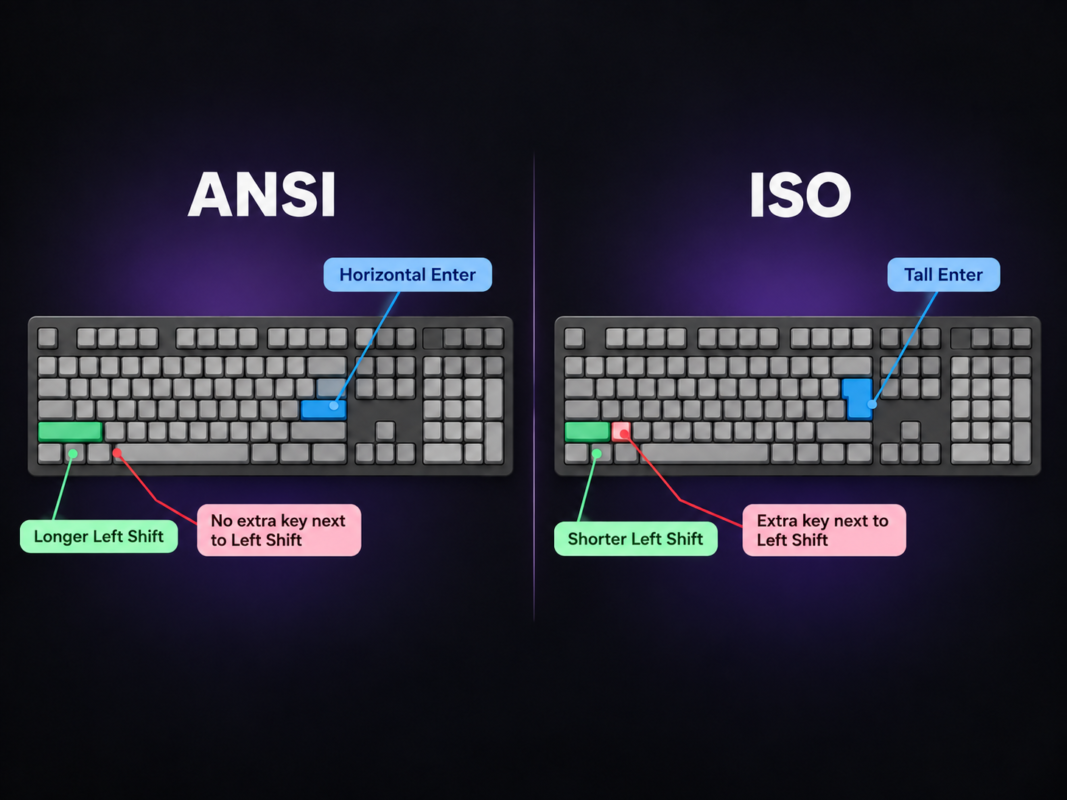
What Are the Physical Differences Between ANSI and ISO?
< and >.Why the difference lives below the keycaps
Is ANSI or ISO Better for Gaming?
What Can Software Fix on an ANSI Keyboard, and What Can’t It?
What happens when you set an ANSI board to Portuguese
~ and ^, because Windows treats it the same as the ISO key beside Enter. Right Alt becomes AltGr, so @, € and the brackets work as they do on any Portuguese keyboard.< and >. Their code belongs to the extra ISO key next to Left Shift, and no key on an ANSI board sends it. That is the one gap software has to fill.
VIA: remapping that lives inside the keyboard
< > key, VIA’s keycode list includes the two ISO-only keys (in QMK terms, KC_NUBS for the key next to Left Shift and KC_NUHS for the key beside Enter). Give KC_NUBS to a key you never use, such as Right Ctrl or Menu, or put it on a layer as Fn + Z. With the Portuguese layout active, that key now types <, and > with Shift.Your keyboard’s own software
< > problem depends on one detail: the key list has to include the ISO key (often labelled “ISO \”, “Non-US \” or “<>”), or let you enter a custom keycode. If it only offers the keys printed on an ANSI board, it cannot help here, and an OS-level tool is your fallback.Operating system tools as a fallback
How Do You Type Portuguese on an ANSI Keyboard?
< >, and your ANSI keycaps will still show US symbols. Pair it with ISO-PT keycaps and that last problem goes away (more on that below).a gives á. Tilde then o gives õ.How to set up US International on Windows 11
Which keys produce which Portuguese characters
The dead key trade-off
t. Programmers notice it first.macOS and Linux
a or o gives ã or õ, Option + grave then a vowel gives the grave accent, and Option + i then a vowel gives the circumflex. Holding a letter key also opens the accent picker, but it disables key repeat for that key, which some games rely on.a gives ã.Which method should you use?
What Is ISO-PT?
< and > live on the extra key next to Left Shift.
How Do You Get ISO-PT Legends Without Buying a New Keyboard?
On an ISO keyboard: a straight swap
< > key come out swapped, macOS has misidentified the keyboard. Go to System Settings > Keyboard > Change Keyboard Type and set it to ISO.On an ANSI keyboard: three steps
< > keycap onto the remapped key so even that legend matches. It was sculpted for the Shift row, so it may sit at a slightly different height from its neighbours.< >, which an OS-level tool can cover.
Are ANSI and ISO Keycaps Compatible?
ANSI or ISO: Which One Should You Choose?
Frequently Asked Questions
Can VIA turn an ANSI keyboard into ISO?
How do I type < and > on an ANSI keyboard with the Portuguese layout?
Will ISO-PT keycaps fit my ANSI keyboard?
Is ANSI better than ISO for gaming?
How do I type ç on an ANSI keyboard?
What is the difference between ISO and ISO-PT?
Is ISO-PT better for Portuguese users?
Final Thoughts: ANSI vs ISO
Put Portuguese Legends on Your Keyboard

Related Posts
ANSI vs ISO Keyboards: What’s the Difference and Which Layout Should You Choose?
Posted by
Most gaming keyboards sold in Portugal are ANSI. Most people in Portugal learned to type on ISO. The gap shows up the first time you look for the ç key,…
CONTINUE READING